달력

12

« 2025/12 »

  • 7
  • 8
  • 9
  • 10
  • 11
  • 12
  • 13
  • 14
  • 15
  • 16
  • 17
  • 18
  • 19
  • 20
  • 21
  • 22
  • 23
  • 24
  • 25
  • 26
  • 27
  • 28
  • 29
  • 30
  • 31
2009. 12. 6. 14:53

DELL M1210 OS X SETUP Hackintosh/NoteBook2009. 12. 6. 14:53

First of all, Thanks joshms83 and others,

Original Posts is in here

This guide references an image of setup files which I have made available here:

DELL M1210 OS X SETUP IMAGE: http://www.mediafire.com/?jmwxxyo1tht (MediaFire)

Note: The following is also provided as a nicely formatted read-me within the DELL M1210.dmg file attached to this post. The DELL M1210.dmg file also contains all of the patches/kexts/apps you need to follow the steps outlined below.

To help any desperate googlers:

Keywords: dell M1210 osx86 Geforce 7400 go External Monitor Dual Monitor Enable QE/QI Bluetooth Sigmatel 9221 Vanilla 9.0.6 10.5.6

rev. March, 2009.

The files included in this image were used to successfully configure a DELL M1210 Laptop using iDeneb v1.4 10.5.6 distribution and Vanilla 9.6.0 kernel. That is not to say however, that all or any of these files won't work for other configurations...

I've provided a summary of installation options used to get OSx86 running on a properly journaled partition, as well as a series of final install/patch steps to follow once you are successfully booted into OS X.

These files and instructions are simply a collection of other people's work organized and consolidated into a package that is (hopefully) easy to use and follow. I've attempted to provide credit to as many of those people as possible, but I may have missed some given this stuff was collected over several weeks of trial-and-error.

References:
http://www.insanelymac.com/forum/index.php?showtopic=41775 (M1210 Dual Boot Guide)
http://www.insanelymac.com/forum/index.php?showtopic=97966 (Dell Post Installer)

DELL M1210:
- Intel Centrino Duo T7200 @ 2Ghz
- 4GB DDR SDram @ 667Mhz
- NVidia Geforce 7400 Go (64Mb/192Mb)
- Sigmatel 9221 Audio
- Dell Bluetooth 355 2.0 +EDR (Broadcom)
- Dell 1390 (Broadcom) Wireless B/G

Resulting Working Feature Set:
This is a list of hardware/features that your system will support at the end of this process.
- Dual Cores (No need for cpus=1)
- GeForce 7400 QE/QI Enabled, Hardware Acceleration, Internal + External (Dual) Display
- Sigmatel 9221 Audio (Not Choppy)
- Internal Microphone
- Full Bluetooth Support
- Full USB Support
- Full Firewire Support
- Full Airport Wireless Support
- Full Laptop/Battery Support
- Full Intel Speedstep Support
- 5-in-1 Card Reader Support
- System will properly Sleep / Wake.
- Support for Apple Software Update

Issues:
- Intel 3945 A/B/G Wireless card is not supported (as of March 3rd 2009). You must replace it with a Dell 1390 card from Ebay (EASY - approx. $12)
- Shutdown command does not fully shutdown the system. I have identified this to be an issue with the Sigmatel 9221 audio patch and nothing else.
- Internal monitor does not properly recover when the system puts the display to sleep as a result of energy preferences (full system sleep works fine).
- Memory bank/DIMM_B is reporting a speed of 0 MHz. The system however, is reporting all 4GB of RAM.
- Logitech Quickcam (PID:0x08c6) is detected as a USB device by the system profiler, but is not yet supported.
Quickcam Drivers under development @ http://webcam-osx.sourceforge.net/cameras/index.php

Untested:
- ExpressCard Slot


OSx86 - iDeneb v1.4 10.5.6:
Vanilla 9.6.0 Kernel (Default)

Patches (Ready)
Chipset
- ICHx Fixed

Network / Ethernet
- AppleBC440x

Fix
- cpus=1 fix (Temporary)
- BatterManager
- Power_Off Fix

Video / NVidia
-NVKush (Temporary)

Apps
- ASU
- BetterZip
- OSx86 Tools
- Transmission

(OPTIONAL) NTFS Read/Write Support:
Note: While this step is listed as optional, if you are installing any of the provided patches directly from an NTFS partition, it is highly advised that you install full Read/Write support for NTFS drives before proceeding. It is also ideal for dual boot scenarios where you would like full control of your xp/vista partition from within OS X.

1. Install MacFUSE 2.0.3 (Mount and install from the .dmg file provided in the root of this setup image)
2. Install NTFS-3G (Mount and install from the .dmg file provided in the root of this setup image)

*Restart*

Patch Sigmatel Audio:
This step is required for OSX to fully support your Sigmatel 9221 audio and microphone.

1. Install AppleHDAPatcher (Copy AppleHDAPatcher v1.12 app provided in the root of his setup image into your Applications folder)
2. Apply Sigmatel9221 HDA Patch (Drag Sigmatel9221.txt provided in the root of this setup image onto the installed AppleHDAPatcher icon. (takes a while to run))

*Restart*

Install Modified NVinjectGO Extension:
The NVinjectGO v0.2.0 extension provided in this setup image has been modified to provide full QE/Hardware Acceleration/Dual Display support for the GeForce7400 Go. Graphics memory will read 512MB in system profiler, but this does not appear to have any adverse effects on system performance.

Note: "Mirror" mode will not work. Also, attempting to use the [Fn] + [F8] key combination (display mode toggle) will halt the system.

1. Delete NVKush.kext (Drag file to Trash - System/Library/Extensions/NVKush.kext )
2. Launch OSx86 Tools (Applications/iDeneb App/OSx86 Tools)
3. (OSx86 Tools) Install NVinjectGO.kext (Provided in this setup image (modified v0.2.0))
4. (OSx86 Tools) Enable Quartz GL
5. (OSx86 Tools) Run System Maintenance (Set Extensions Permissions, Clear Extensions Cache -> Run Tasks)

*Restart*

Enable Support for Both Cores:
This step will allow us to remove the "cpus=1" and "-f " kernel boot flags from apple.com.Boot.plist enabling and synchronizing both cores. Removing "cpus=1" enables both cores. Removing "-f" appears to correct kernel panic upon resume from sleep.

1. Launch OSx86 Tools (Applications/iDeneb App/OSx86 Tools)
2. (OSx86 Tools) Install Kernel ("mach_kernel" provided in this setup image under "/mach_kernel [DELL M1210] [Vanilla 9.6.0] [Dual Core]/mach_kernel")
3. (OSx86 Tools) Run System Maintenance (Repair Permissions, Set Extensions Permissions, Clear Extensions Cache -> Run Tasks)

*Restart*

4. Install pList Edit Pro (Mount and install from the .dmg file located on this setup image)
5. Open com.apple.Boot.plist (Library/Preferences/com.apple.Boot.plist)
6. Remove "cpus=1 -f" from kernel flags (Under <Kernel> change "<string>cpus=1 -f</string>" to "<string></string>")

*Restart*

If you system boots up normal, with no jittery mouse or sound, you are running properly with dual core support. While you shouldn't experience any problems, in the event that do, you can restart again, press any key during the darwin boot countdown and provide "cpus=1 -f" flags to boot back into stable system and undo the changes to your com.apple.Boot.plist file.


Install 5-in-1 Card Reader Support:
This kext installs support for the 5-in-1 card reader. I have used it to successfully mount a 4GB SD Card.

1. Launch OSx86 Tools (Applications/iDeneb App/OSx86Tools)
2. Install IOSDHCIBlockDevice.kext (Located in the 5-in-1 Card Reader directory included with this setup image)
3. Run System Maintenance (Set Extension Permissions, Clear Extensions Cache -> Run Tasks)

*Restart*

(OPTIONAL) Install Apple Software Update Support:
Notes originally provided with this mention needing chameleon 1.0.11 installed or higher prior to installing this feature. I did not try to update without this feature, but I did successfully patch my OS X installation using Apple Software Update after installing it.

1. Launch OSx86 Tools (Applications/iDeneb App/OSx86 Tools)
2. Install AppleDecrypt.kext (Located in the Apple Updater Support directory included with this setup image)
2. Install Disabler.kext (Located in the Apple Updater Support directory included with this setup image)
3. Run System Maintenance (Set Extension Permissions, Clear Extensions Cache -> Run Tasks)

*Restart*


(OPTIONAL) Install Intel Speedstep Extension:
I'm 50% sure that Speedstep is working without this step. Applying this step however, does not have any adverse effect on system performance, and allows you to visually confirm speedstep functionality via the included SpeedStep GUI application.

1. Launch OSx86 Tools (Applications/iDeneb App/OSx86 Tools)
2. Install IntelEnhancedSpeedStep.kext (Located in the SpeedStep Support directory included with this setup image)
3. Run System Maintenance (Set Extension Permissions, Clear Extensions Cache -> Run Tasks)
4. Install SpeedStep Application (Drag the SpeedStep included with this setup image into your Applications folder)

*Restart*

5. Launch SpeedStep Application (Run the installed SpeedStep app from your Applications folder to confirm working SpeedStep)

If you experience any problems (Kernel Panic, etc...) after installing IntelEnhancedSpeedStep.kext, press any key during the darwin boot countdown and provide the boot flag "-x". This will boot you into OS X "Safe Boot" and allow you to uninstall IntelEnhancedSpeedStep.kext from your system/library/extensions folder (by dragging it into the trash).

(OPTIONAL) Install Clamshell Display:
This step installs an extension that will put the system to sleep when you close the lid. It works 100%, but I'm not sure how I feel about it - so I marked it optional.

1. Launch OSx86 Tools (Applications/iDeneb App/OSx86Tools)
2. Install ClamshellDisplay.kext (Located in the Clamshell Display directory included with this setup image)
3. Run System Maintenance (Set Extension Permissions, Clear Extensions Cache -> Run Tasks)

*Restart*

If you decide you don't like this. You can remove it by dragging the ClamshellDisplay.kext file located in your System/Library/Extensions folder into the trash and restarting.


At this point you should have a pretty functional OS X setup.

Dual Boot Preferences/Notes:

- You can assign a more windows like behavior to your [CTRL] and [ALT] keys by swapping their key functions in System Preferences.
(Located under System Preferences -> Keyboard and Mouse -> Keyboard -> Modifier Keys)

- If you are using a bluetooth keyboard and mouse, they can be configured to work in both Vista and OS X without the need to constantly re-pair them:
1. "Connect" (not "Pair") to your device in vista (I use BlueSoleil v6 Bluetooth Stack).
2. In OS X, set up/connect your mouse using the "mouse" option (as you normally would) within bluetooth preferences.
3. In OS X, set up/connect to your keyboard using the "Any Device" option.
4. On the device locater screen, click "Passkey Options" and select "Do not use a passkey"
5. Proceed with the connection... select "use this as a remote control for my computer"
6. Future connection requests from your keyboard should be automatically accepted by OS X.

Note: I performed this with a Logitech MX5000 keyboard and Logitech MX1000 mouse (both bluetooth).


DELL M1210 OS X SETUP IMAGE: http://www.mediafire.com/?jmwxxyo1tht (MediaFire)


'Hackintosh > NoteBook' 카테고리의 다른 글

Samsung Q210-FS02  (0) 2009.12.15
Sony Vaio CR11z, CR21z, CR31z with ATI X2300 and Snow Leopard  (0) 2009.12.07
HP 2133 with OSX?  (0) 2009.11.22
HP CQ40  (0) 2009.11.05
Toshiba Satellite A300-1N8  (0) 2009.10.29
:
Posted by Ritz®™

What is the Mercedes-Benz mbrace Mobile Application?

The Mercedes-Benz mbrace Mobile Application allows mbrace subscribers to access their telematics services from the

convenience of their mobile devices.

The following services are available using the Mobile Application:


Remote Door Unlock

Accidentally locked your keys in your vehicle? The Remote Door Unlock feature allows you to send a message to your

vehicle requesting a door unlock. Once you’ve received confirmation that the message was sent, simply press and hold

your vehicle’s truck release button/latch until the doors unlock.


Remote Door Lock*

Not sure whether you remembered to lock your vehicle doors? Rest assured, the Remote Door Lock feature allows you

to lock your vehicle’s doors from wherever you are and sends you a confirmation message when the lock command has

been successfully completed. *Please note, the Remote Door Lock feature is limited to select Mercedes-Benz vehicle

models.


Vehicle Finder

Can’t remember where you parked? The Vehicle Finder feature allows you to view your vehicle’s location on a map

relative to where you are currently located, leveraging your phone’s GPS. Unlike other vehicle locator apps, you do not

need to remember to mark your location prior to leaving your vehicle.


Call for Assistance

Need roadside assistance or have a question about your mbrace account? Can’t remember when your next Mercedes-

Benz lease payment is due? The Assistance feature allows you to contact Mercedes-Benz Roadside Assistance, the

Mercedes-Benz mbrace Response Center or the Mercedes-Benz Financial Client Care Center through the press of a

button.


etc.......

'Mobile > iPhone' 카테고리의 다른 글

HTC hero, 아이폰과 옴니아를 인가젯에서 비교한 동영상  (0) 2009.12.07
IPHONE SDK용 시스템  (0) 2009.12.06
twittpop Event!! iPhone  (0) 2009.11.28
iPhone 잠실실황 생중계  (0) 2009.11.27
iPhone 요금 계산  (0) 2009.11.25
:
Posted by Ritz®™
2009. 12. 4. 14:57

Pages Application2009. 12. 4. 14:57

Pages


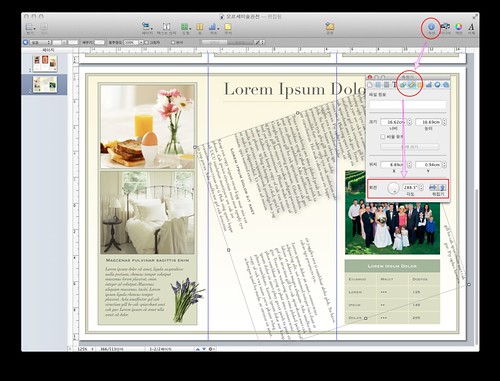
1. Pages에서 자간, 장평조절하기


'Application' 카테고리의 다른 글

Stationary pack  (0) 2010.03.06
Mojo - iTunes 와의 만남  (0) 2010.02.05
Mac에서 기본 웹 브라우저 설정하기  (0) 2009.10.22
한글 입력기 바람  (0) 2009.10.21
Linkinus 2.0.1 많이 발전했군요.  (0) 2009.07.10
:
Posted by Ritz®™

설치된 모든 어플리케이션을 검색하여 Update가 있는 소프트웨어를 그림과 같이 클릭한방으로 업데이트하여 줍니다.

Requirement : Tiger, Leopard, Snow Leopard.


'macOS > Leopard' 카테고리의 다른 글

Apple 키보드 매핑  (0) 2013.02.25
맥에서 백업하기  (0) 2011.02.13
root 계정 활성화 하기  (0) 2009.12.16
10.5 BootCamp 드라이버  (0) 2009.02.09
:
Posted by Ritz®™
2009. 12. 2. 07:50

맥에서 하는 디스크 조각모음 macOS2009. 12. 2. 07:50

일단 맥은 윈도우즈와 비교하여 파일시스템 관리 구조(GPT+HFS 파티션 포맷) 자체가 다릅니다.

윈도우즈에서 사용하였었던 디스크 조각모음을 할 필요가 없습니다.

고정관념을 버리셔야 합니다.

- 6. Mac OSX 기본 사용법

그만큼 유닉스는 윈도우즈와 비교하여 상대적으로 아주 안정화된 시스템입니다.

하지만, torrent를 이용하여 다운로드를 많이 받으시는 분이나 간혹 굳이 디스크 조각모음을 하여야 겠다고 고집을 피우시는 분들을 위해 다음 그림과 같이 TechTool Pro라는 유틸리티를 소개합니다.


:
Posted by Ritz®™
2009. 11. 28. 08:29

twittpop Event!! iPhone Mobile/iPhone2009. 11. 28. 08:29

'Mobile > iPhone' 카테고리의 다른 글

IPHONE SDK용 시스템  (0) 2009.12.06
Control your Mercedes mbrace with an iPhone or RIM Blackberry  (0) 2009.12.05
iPhone 잠실실황 생중계  (0) 2009.11.27
iPhone 요금 계산  (0) 2009.11.25
App Store Essentials - Black Friday  (0) 2009.11.25
:
Posted by Ritz®™
2009. 11. 27. 22:09

iPhone 잠실실황 생중계 Mobile/iPhone2009. 11. 27. 22:09

iPhone 잠실실황 생중계

http://www.ustream.tv/channel/ollehkt

f0027855_4b1545d68ce88.jpeg

'Mobile > iPhone' 카테고리의 다른 글

Control your Mercedes mbrace with an iPhone or RIM Blackberry  (0) 2009.12.05
twittpop Event!! iPhone  (0) 2009.11.28
iPhone 요금 계산  (0) 2009.11.25
App Store Essentials - Black Friday  (0) 2009.11.25
It's time to buy iPhone in Korea  (0) 2009.11.24
:
Posted by Ritz®™
2009. 11. 27. 18:26

Boot Argument macOS2009. 11. 27. 18:26

First of all, thanks Superhai,

Followings is his posting.

  1. DTrace
    dtrace_dof_mode - Set DTrace DOF modes {0/1/2/3}
    DisableFBT - Disable FBT {1}
    IgnoreFBTBlacklist - Ignore blacklist of certain critical modules {1}
  2. BSD
    -b - Don't run /etc/rc.boot
    -l - Log leaks
    srv - Boot as server {1}
    ncl - Number of clusters
    nbuf - Number of buffers for bsd
    kmem - Kernel memory access {1}
    trace - Kernel trace buffer size
    msgbuf - Message Buffer
    rp - Root path
    mcache_flags - Memory cache flags
    mbuf_debug - MBuf Debug {1}
    initmcl - Init mbuf clusters
    socket_debug - Socket debug (net)
    net_affinity - Net Affinity (net)
    rte_debug - Route debug (net) {flags}
    -rwroot_hack - Mount root read/write
  3. IOKit
    mseg - Max segment
    dart - Remove mapper present
    io - IO Kit Debug
  4. Mach
    keepsyms - Do not unload KLD/Address-symbol translation {1}
    debug - Kernel debug {flags}
    nvram_paniclog - commit paniclog to NVRAM {1}
    pmsafe_debug - Put CPUs into "safe" power mode {1}
    preempt - Set default preemption rate
    unsafe - Max unsafe quanta
    poll - Max poll quanta
    yield - Schedule poll yield shift
    idlehalt - Halt idle thread to allow cpu into lowpower mode {1}
    panic_io_port - In a panic read from this I/O port {0x0 to 0xffff}
    _fpu - Limit boot-time cpu features {387/mmx/sse}
    diag - Diagnostic output
    serial - Serial diagnostic console
    maxmem - Maximum memory to use
    cpus -Numbers of cpus
    himemory_mode - Set memorymode for over 4GB {0 - All pages available/1- disable high mem/2 - prefer high mem}
    immediate_NMI - Force immediate NMI debugger {1}
    -legacy - Force legacy 32bit mode
    lcks - Lock statistics
    novmx - No altivec emulation in Rosetta {1}
    max_valid_dma_addr - Max valid DMA address
    maxbouncepool - Max bounce pool size
    maxloreserve - Max low reserve
    npvhash - Physical to virtual mapping hash
    wpkernel - Write protect kernel {1}
    -no_shared_cr3 - Disable shared kernel address space for 64 bit users
    -pmap_trace - Enable kernel traces for pmap
    _panicd_ip - IP of panic server
    _router_ip - IP of router
    panicd_port - Port of panic server
    -zc - Free zone element checking
    mtxspin - Mutex spin (ppc)
    vmmforce - VMM force (ppc)
    fn - Force nap (ppc) (acpi) {0/1/2}
    pmsx - Experimental power management stepper mode (ppc) {1}
    ctrc - Set tracing to specific cpu (ppc)
    tb - Non-default trace buffer size (ppc)
    wcte - Write combine timer enable (ppc)
    mcklog - Clear machine check flag (ppc)
    mcksoft - Machine check software recovery (ppc)
    ht_shift - Non-default hash table size (ppc) {1}
    zsize - Target zone size
    colors - Set VM colors
    fill - Fill pages
    serialbaud - Set serial baud rate
  5. Boot
    -v - Verbose Mode
    -x - Safe Mode
    -f - Old Safe Mode
    -F - Ignore Boot File
    -s - Single User Mode
    Graphics Mode - VESA Graphics Mode Dimensions
    Text Mode - VGA Text Mode Dimensions
    Boot Graphics - Graphics or Text Mode
    Quiet Boot - Quiet Bootmode
    MKext Cache - Mkext cache file
    Kernel Cache - Kernel Cache file
    rd - Root Device
    boot-uuid - Boot UUID
    platform - Platform Expert {ACPI}
    config - Load alternate config plist
  6. Other
    smbios - Verbose SMBIOS (AppleSMBIOS.kext) {1}
    acpi - Debug AppleACPIPlatform {1-8}
    acpi_level - ACPI Debug Level
    acpi_layer - ACPI Debug Layer
    acpi_sleep - ACPI Sleep
    nvdebug - NVDAResman debug
    nvrm - NVDAResman
    ndrv_debug_level - NDRV Debug Level (NVDAResman)
    pstep - Power Step Debug (ACPI_SMC)
    hpet - AppleHPET
There are more, which I will update it later. I will not add args which are not present in the current apple release (i.e. only vanilla). All reservations against errors and mistakes. If you find anyone please notify.


Ex)

❶ "config=gfx"

- it load a config file with different gfx string, so it loads /Library/Preferences/SystemConfiguration/gfx.plist instead of com.apple.Boot.plist

❷ rd=disk0s3 -s -x "Graphics Mode"="800x600x32" platform=X86PC

- it can combine the flags:

❸ "rd=boot-uuid, boot-uuid = XXXXX" or "boot-uuid - XXXXX"

- Define Hard Disk

❹ "busratio=20"

- yea, it used i7 cpu in 10.5.6. after upgrading to 10.5.7, it does not need.

❺ "acpi_level=2 acpi_layer=0x80"

- Not sure, it will work.

:
Posted by Ritz®™